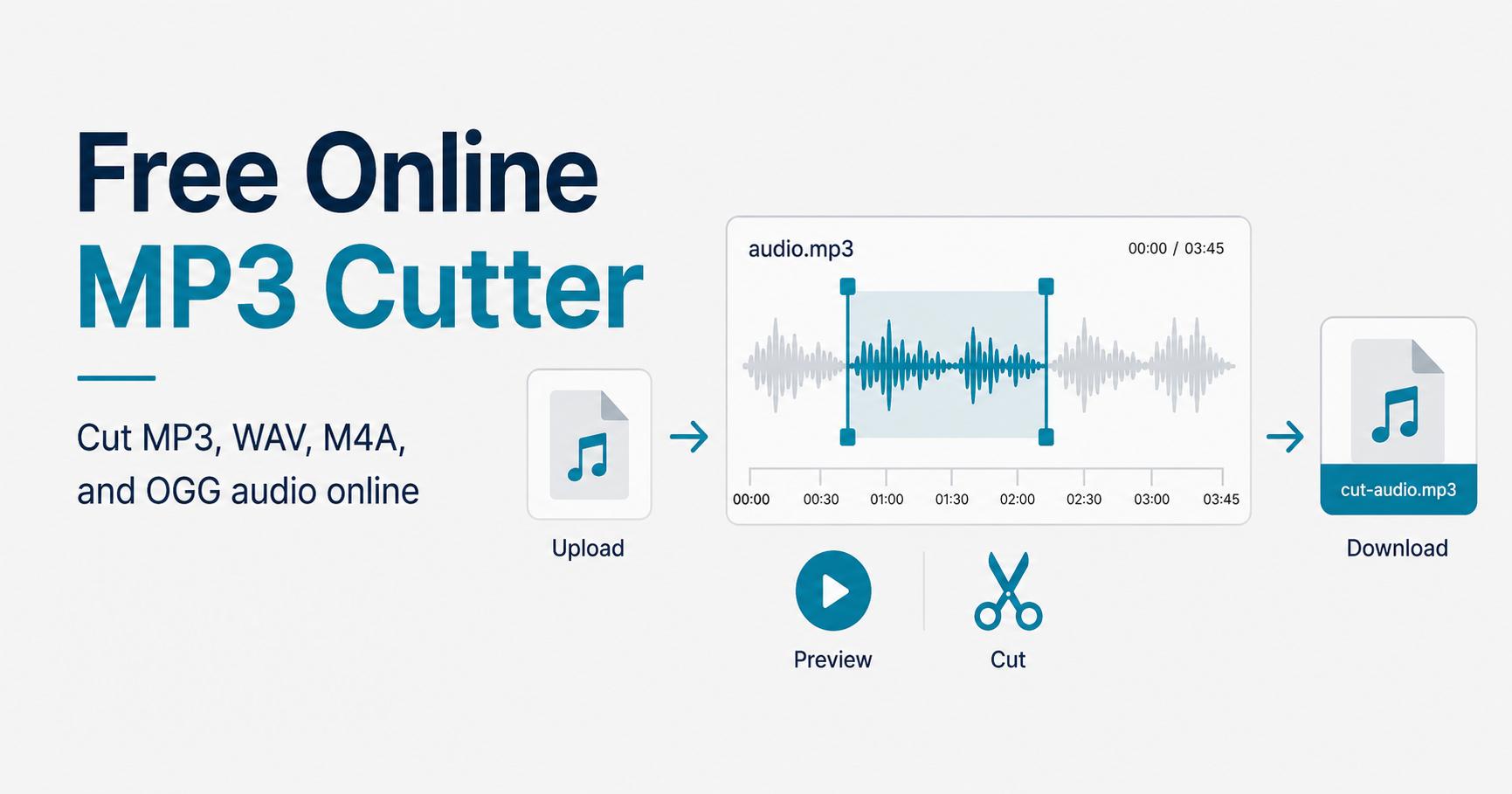
Free Online MP3 Cutter

Cut MP3, WAV, M4A, and OGG audio directly in your browser. Upload a file, drag the waveform selection, preview the result, then download as MP3 or WAV.

Upload audio file

Drop your MP3, WAV, M4A, or OGG file here, or choose a file from your device.

What is Free MP3 Cutter?

What is an online MP3 cutter?

An online MP3 cutter is a browser tool that helps you trim an audio file without installing desktop editing software. You upload an audio file, inspect the waveform, choose the section you want to keep, preview the selected part, and export the final clip.

Free MP3 Cutter is designed for simple, fast edits: cutting long songs, shortening recordings, making quick sound clips, preparing ringtone-length audio, or removing unwanted beginning and ending parts from an audio file.

How to use

How to cut an MP3 file online

  1. Upload your audio file. Drag a file into the upload area or click the upload button.
  2. Wait for the waveform. The file is decoded locally in your browser and displayed as a waveform.
  3. Select the part to keep. Drag the START and END handles, drag the blue selected area, or click and drag to create a new selection.
  4. Preview the selection. Use Play Selection to check the exact part before exporting.
  5. Choose output settings. Select MP3 or WAV. For MP3, choose the bitrate you need.
  6. Create and download. Generate the output file and download it to your device.

FAQs

Frequently asked questions

1. Is this MP3 cutter free to use?

Yes. Free MP3 Cutter is built as a free browser-based audio trimming tool for simple MP3 and audio edits.

2. Do I need to install software?

No. The tool runs in your browser, so you can upload, cut, preview, and download audio without installing desktop software.

3. Are my audio files uploaded to a server?

No. The audio file is decoded and edited locally in your browser. It is not uploaded to our server by this tool.

4. Which audio formats are supported?

The upload accepts common browser-supported audio files such as MP3, WAV, M4A, and OGG. Browser support may vary by device.

5. Can I export the result as MP3?

Yes. You can export the selected audio range as MP3 and choose a bitrate such as 64, 128, 192, or 320 kbps.

6. Can I export as WAV?

Yes. WAV export is available and is useful when you want a simple uncompressed output or when MP3 encoding is slow.

7. Why does a large file feel slow?

Browser-based audio editing needs to decode the full file into memory. Very large files may be slow on older computers or mobile devices.

8. Can I drag the waveform selection?

Yes. Drag the START or END handle to adjust the cut points, drag the selected area to move the range, or click and drag to create a new selection.

9. Can I preview only the selected part?

Yes. Use Play Selection to play from the selected start point and automatically stop at the selected end point.

10. What can I use this tool for?

It is useful for trimming songs, creating short clips, cutting recordings, removing long silence, preparing ringtone-length audio, or exporting a smaller audio segment.