
Free online audio tool

Multi-Track Audio Merger Online

Upload two or more audio files, arrange clips on a timeline, adjust volume per track, preview the mix, and export WAV or MP3.

Audio Merge Studio

Add audio trackMP3, WAV, M4A, OGG, AAC, or any browser-supported audio format.
0 track(s) · 00:10.000
00:00.000
No tracks yet.

Visual preview may lag with multiple tracks. Exported WAV/MP3 quality remains unaffected.

Load multiple audio files to start.

What is

What is Multi-Track Audio Merger Online?
Multi-Track Audio Merger Online illustration

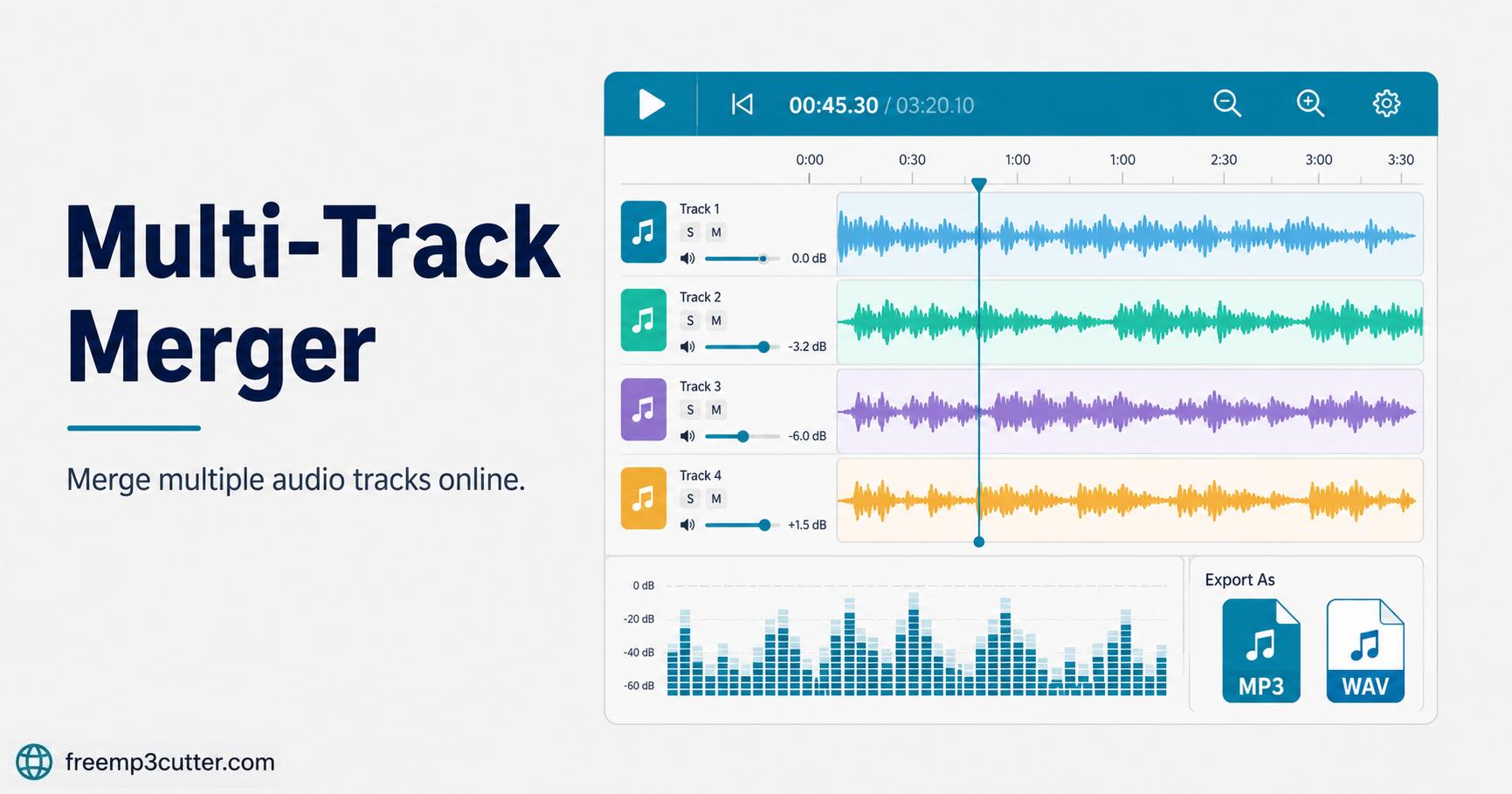
Multi-Track Audio Merger Online lets you combine several audio files into one mix. Add music, voice notes, intros, outros, or sound effects as separate tracks, then drag each clip to control when it starts.

The editor includes a playhead, animated spectrum display, zoomable timeline, per-track controls, and WAV or MP3 export.

How to

How to merge audio tracks

  1. Add audio files. Choose or drag multiple supported audio files into the upload area.
  2. Arrange clips. Drag clips left or right on the timeline to set when each track starts.
  3. Balance the mix. Use per-track volume sliders, mute, and solo controls.
  4. Preview the timeline. Click or drag the playhead, then press Play to review the mix.
  5. Export the result. Download the merged mix as WAV or MP3.

Before mixing

Quality and project limitations

Your selected tracks are processed on your device. Projects with many long files can require more time and memory, so keep the page open while previewing or exporting.

Listen through important transitions before downloading. Overlapping loud tracks can cause distortion, while large volume differences may make part of the mix difficult to hear.

FAQs

Multi-Track Audio Merger FAQs

1. What is Multi-Track Audio Merger Online?

It is an audio mixing tool for placing multiple clips on a timeline, balancing their volume, and exporting one combined file.

2. Can tracks overlap?

Yes. You can move clips on the timeline so they start together, overlap, or play one after another.

3. Can I adjust each track separately?

Yes. Each track has volume, mute, solo, and timing controls so you can balance the mix before exporting.

4. Which export formats are available?

You can export the final mix as WAV or MP3, depending on the output you need.

5. Why can large projects feel slow?

Multiple long tracks require more memory and processing power during preview and export.