Free online audio tool

Silence Remover Online

Clean up voice recordings, lectures, podcast clips, and long pauses by removing silent sections.

Upload audio file

Choose an audio file from your device. Processing happens locally in your browser when the format is supported.

MP3WAVOGGOPUSM4AAACM4RFLACAIFF

What is

What is Silence Remover?

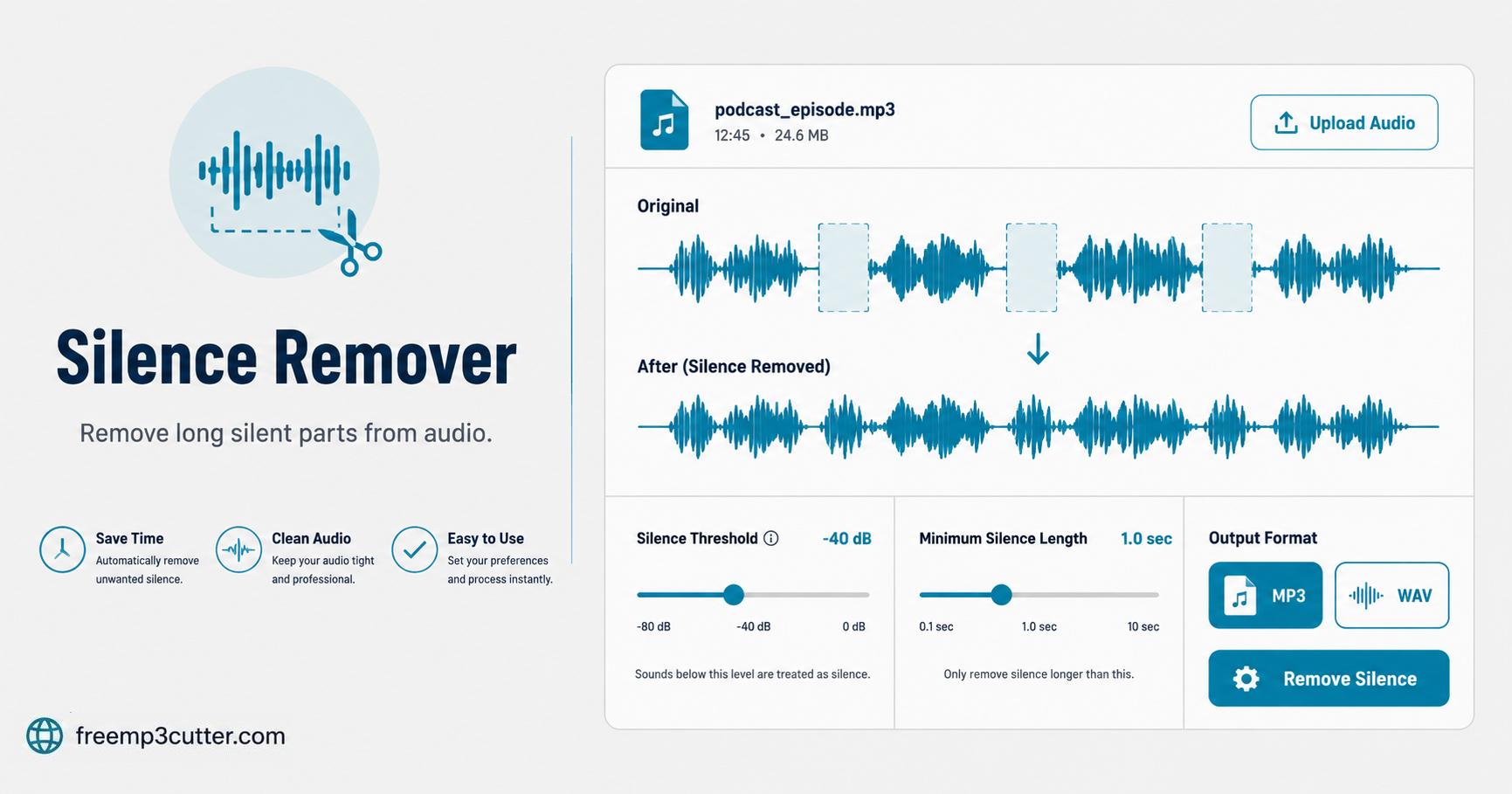
Silence Remover Online illustration

Silence removal helps reduce long pauses in voice notes, lectures, interviews, podcasts, and recordings with empty gaps.

The tool detects quiet sections using a threshold. Review the result because soft speech and background noise can affect silence detection.

Use the available controls to adjust the result, listen before saving, and download a new file when you are satisfied.

How to

How to use Silence Remover

  1. Add your audio. Choose a supported audio file from your device or drag it into the upload area.
  2. Adjust the result. Adjust the silence sensitivity carefully so quiet speech is not removed by mistake.
  3. Preview before saving. Listen to the result and make another adjustment when needed.
  4. Create the output. Keep the page open while your new audio file is being prepared.
  5. Download manually. Save the finished file to your device when the download button appears.

Formats

Supported audio input

The upload field accepts common audio extensions, but the device must be able to decode the actual file. MP3 and WAV are the safest choices. OGG, OPUS, M4A, AAC, M4R, FLAC, and AIFF support can vary.

MP3WAVOGGOPUSM4AAACM4RFLACAIFF

Common uses

When to use Silence Remover

Silence removal helps reduce long pauses in voice notes, lectures, interviews, podcasts, and recordings with empty gaps.

This tool is suitable for quick adjustments to voice notes, recordings, lessons, interviews, podcasts, music clips, and other personal audio files.

Before editing

Quality and limitations

The tool detects quiet sections using a threshold. Review the result because soft speech and background noise can affect silence detection.

Your selected audio is processed on your device. For long or large files, keep the page open and avoid running too many other applications until processing finishes.

Preview the result before downloading. Damaged, protected, silent, or unusually created files may not open successfully, and strong adjustments can sometimes produce unwanted changes.

FAQs

Silence Remover FAQs

1. What is Silence Remover?

Silence removal helps reduce long pauses in voice notes, lectures, interviews, podcasts, and recordings with empty gaps.

2. Which audio files can I use?

The upload accepts common audio formats such as MP3, WAV, OGG, OPUS, M4A, AAC, M4R, FLAC, AIFF. Support can vary depending on how the original file was created.

3. Can I preview before downloading?

Yes. Preview the processed result before creating the final MP3 or WAV output whenever the tool provides a preview control.

4. Which output formats are available?

Most editing tools export MP3 for smaller files and WAV for an uncompressed copy.

5. Why can processing feel slow?

Large files and long recordings require more time to prepare. Device speed and available memory can also affect processing time.