Audio tool

Volume Booster Online

Increase audio volume, preview the louder version, then download MP3 or WAV manually.

Upload audio file

Boost audio volume online in your browser. Choose an audio file, raise the loudness, preview the result, then download manually.

MP3WAVOGGOPUSM4AAACM4RFLACAIFF

What is

What is Volume Booster Online?

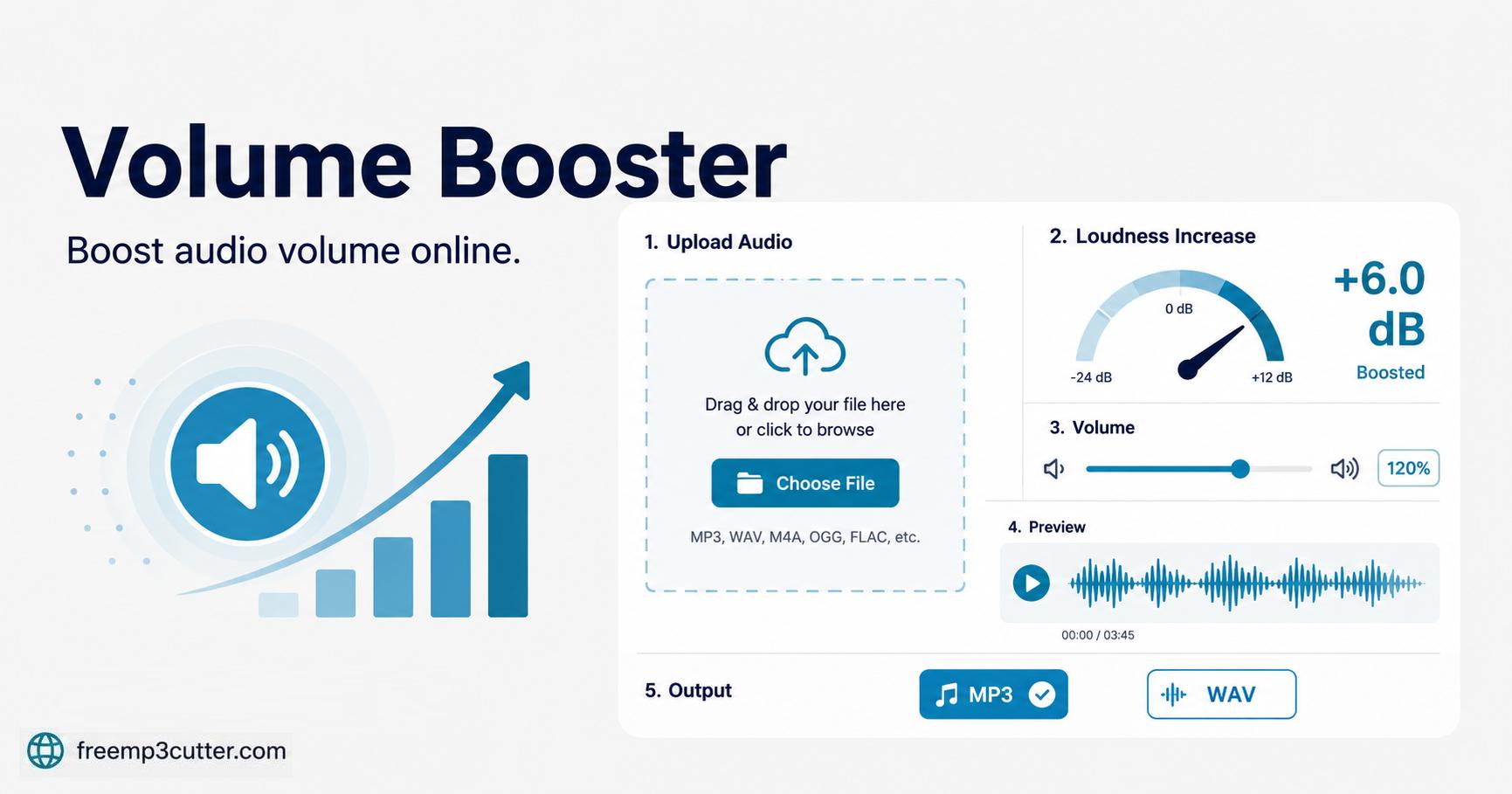
Volume Booster Online illustration

Volume Booster Online helps make quiet audio louder. It is useful for voice notes, recordings, interviews, lectures, podcasts, and clips that sound too low before sharing.

The tool lets you choose a boost level, preview the result, use soft limiting to reduce harsh peaks, and export a new MP3 or WAV file.

How to

How to boost audio volume online

  1. Upload your audio file. Choose MP3, WAV, OGG, OPUS, M4A, AAC, M4R, FLAC, or AIFF when your device can decode it.
  2. Choose a boost level. Increase volume from 125% up to 500%, or use the slider for a custom value.
  3. Preview the louder audio. Listen before saving so you can avoid harsh distortion or clipping.
  4. Create the output. Export the boosted audio as MP3 for smaller files or WAV for an uncompressed copy.
  5. Download manually. The page creates the file first, then you click the download button yourself.

Quality notes

Boosting volume without ruining the sound

Volume boosting multiplies the audio signal. If the boost is too high, loud parts can hit the digital ceiling and create clipping distortion. The soft limiter option keeps the audio louder while reducing harsh clipping on peaks.

For quiet voice recordings, moderate boosts such as 150%, 200%, or 300% usually work better than forcing the maximum setting. For already loud music, use smaller boosts and preview carefully before creating the output file.

Your selected audio is processed on your device. For large files, keep the page open and avoid running too many other applications until the louder version is ready.

FAQs

Volume Booster FAQs

1. What is Volume Booster Online?

It is an audio tool for making quiet audio louder and exporting the result as MP3 or WAV.

2. Which audio files can I upload?

You can try MP3, WAV, OGG, OPUS, M4A, AAC, M4R, FLAC, or AIFF when the file can be decoded on your device.

3. How much should I boost audio?

Start with 150% or 200% for voice recordings. Use higher levels only after previewing for distortion.

4. Can boosting volume cause distortion?

Yes. Very high boost levels can cause clipping. Use the soft limiter and preview before downloading.

5. Which output should I choose?

Choose MP3 for smaller files and easy sharing. Choose WAV when you want an uncompressed copy.