Free online audio converter

Convert Audio to OPUS Online

Create an Opus output when browser recording support is available. Opus is efficient for speech, web audio, voice notes, and compact audio delivery.

Upload audio files

Drop one or more audio files here, or choose files from your device. Listed formats are processed.

MP3WAVOGGOPUSM4AAACFLACAIFFM4RMP4WEBMMKVMOV

What is

What is Convert to OPUS?

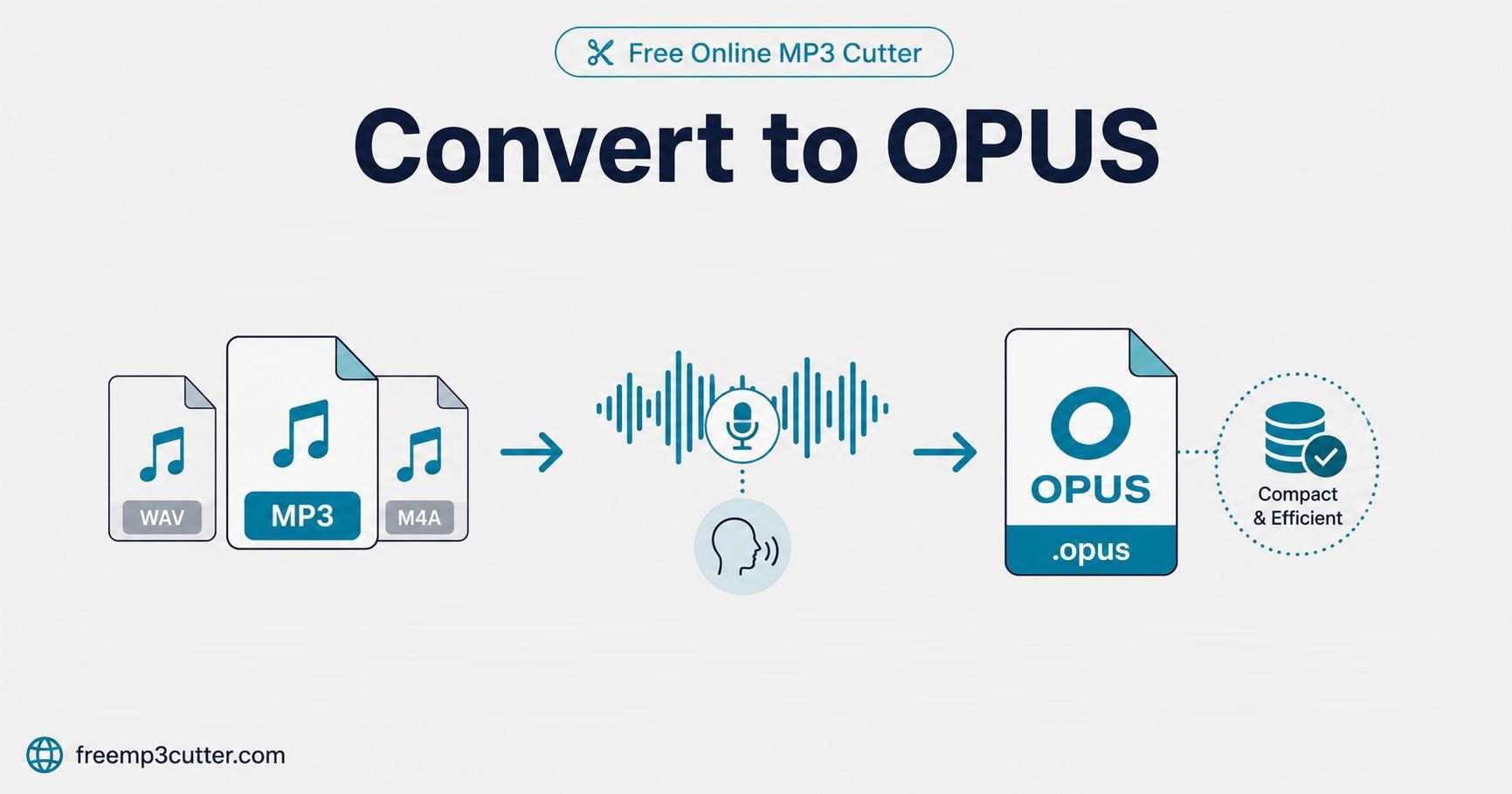
Convert Audio to OPUS Online illustration

Opus is useful for speech, voice clips, web apps, and efficient audio where browser/app compatibility is acceptable.

Opus works best with modern players and applications. Check compatibility with your intended device or service before removing the original file.

This page is already set to create OPUS, so you can convert without choosing the output format each time.

How to

How to convert audio to OPUS

  1. Upload your file. Choose a supported audio or media file from your device, or drag it into the upload area.
  2. Review the selected output. This page is already set to create OPUS, so no extra format choice is needed.
  3. Create the output. Start conversion and keep the tab open while the file is prepared.
  4. Check the result. Use the preview or file details when available before saving.
  5. Download the file. Click the download button after the OPUS output is ready.

Formats

Supported input and output formats

Choose a common audio or media format below. Support can vary depending on how the original file was created, even when its extension appears in this list.

MP3WAVOGGOPUSM4AAACFLACAIFFM4RMP4WEBMMKVMOV

Other output options available on this site include M4A / iPhone Sound, AAC, MP3, WAV, FLAC, AIFF, M4R, OGG, OPUS.

Common uses

When to convert audio to OPUS

Opus is useful for speech, voice clips, web apps, and efficient audio where browser/app compatibility is acceptable.

  • Create a version that works better with your preferred phone, player, editor, or sharing service.
  • Prepare audio for listening, editing, archiving, messaging, or offline use.
  • Replace an inconvenient source format with one that better suits your next task.

Before converting

Quality and limitations

Converting audio does not improve the quality of the original recording. The finished OPUS file depends on the clarity and condition of the source file.

Opus works best with modern players and applications. Check compatibility with your intended device or service before removing the original file.

Your selected file is processed on your device. For long or large files, keep the page open and avoid running too many other applications until conversion finishes.

Damaged, protected, or unusually created files may not open successfully. If conversion fails, try the original file or a more widely supported source such as MP3 or WAV.

FAQs

Convert to OPUS FAQs

1. What does Convert to OPUS do?

It creates a OPUS audio file from a supported audio or media input.

2. Which files can I upload?

You can choose common formats including MP3, WAV, OGG, OPUS, M4A, AAC, FLAC, AIFF, M4R, MP4, WEBM, MKV, MOV. Support can vary depending on how the original file was created.

3. When should I choose OPUS?

Opus is useful for speech, voice clips, web apps, and efficient audio where browser/app compatibility is acceptable.

4. Does the file download automatically?

No. The page prepares the output first, then shows a download button for you to click.

5. Why can conversion take longer for large files?

Long and large files take more time to prepare. Device speed, available memory, and the condition of the source file can also affect conversion time.