 Free MP3 Cutter & Converter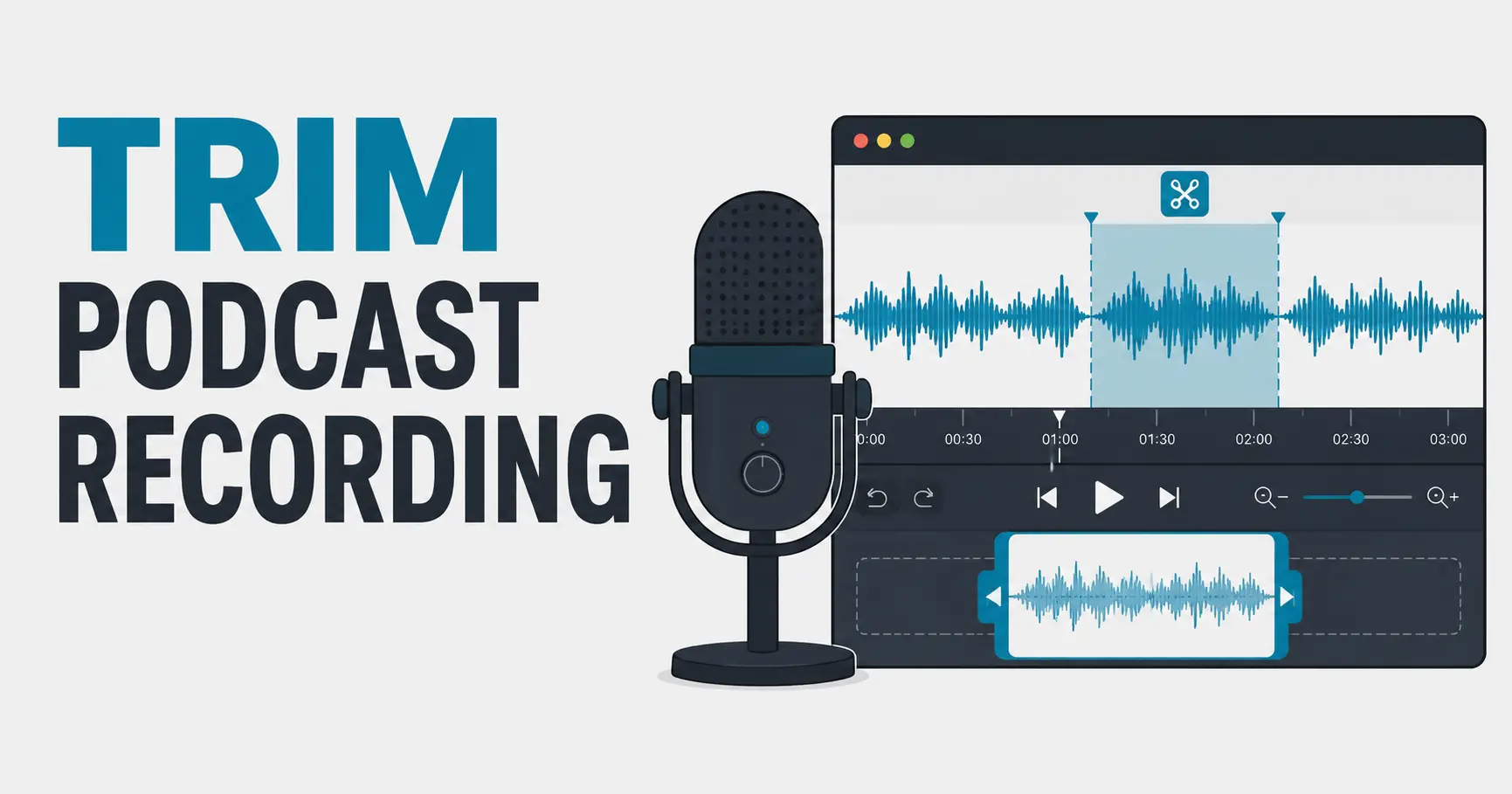
Trimming a podcast recording is one of the easiest ways to make an episode, preview, or segment easier to listen to. You might need to remove silence at the beginning, cut a false start, shorten a long pause, or create a short clip for review. A browser-based audio cutter can help with these basic tasks by letting you upload the recording, view the waveform, choose a start and end point, preview the selected section, and export the result as MP3 or WAV.
Before trimming, decide what kind of podcast edit you are making. If you only need a rough cut, you may remove the extra space before the intro and after the outro. If you are preparing a short segment, you may need to select one complete answer, story, or topic. If you are cleaning a recording for later editing, you may want to keep a little extra space at the edges so there is room to adjust later. Clear goals make cleaner cuts.
Start by saving a backup of the original recording. Podcast files can be long, and once you export a trimmed version, you may not be able to recover removed sections from that export. Keeping the original file protects you if you later notice a missing phrase or want a different segment. This is especially important for interviews, remote recordings, or episodes that cannot be recorded again. A simple backup habit can prevent serious editing problems.
Upload the podcast file and wait for the waveform to load. Podcasts can be large, especially if they are recorded in WAV or if the episode is long. Browser-based processing depends on file size, browser, CPU, and memory. A short MP3 may load quickly, while a full-length WAV episode may take longer. If the page feels slow, close unused tabs and give the browser time to decode the file before placing markers.
Use the waveform to find the beginning of the useful audio. Many podcast recordings start with silence, microphone checks, repeated greetings, or background noise. These parts can usually be removed. Place the start marker just before the real intro or first useful sentence. Do not cut too close to the first word. Speech often begins softly, and cutting too tightly can remove the first sound of a word. Preview the start several times before moving on.
Next, find the end of the section you want to keep. For a full episode, this may be after the outro or final sign-off. For a short podcast clip, it may be after a complete thought or answer. Avoid ending in the middle of a sentence unless you are intentionally creating a teaser. A good podcast trim should feel complete. The listener should not feel like the audio stopped by accident.
Long pauses require careful judgment. Removing every pause can make conversation sound rushed and unnatural. Short pauses help listeners understand speech and give hosts room to breathe. Very long pauses, technical delays, or silent gaps can be shortened or removed. When trimming a podcast, the goal is not to remove all silence. The goal is to improve pacing while keeping the conversation comfortable and human.
False starts are common in podcast recordings. A host may begin a sentence, stop, and begin again. If the false start is at the beginning or end of the selected section, it is easy to trim away. If it happens in the middle, a simple start-and-end cutter may not be the right tool for that edit unless you are only exporting a section that avoids it. For more complex editing, you may need a multi-track or timeline editor. For simple trimming, focus on clean starts and endings.
Previewing is especially important for spoken audio. Listen for clipped words, sudden cuts, missing context, and awkward timing. A waveform may show a quiet space, but it cannot tell you whether that space is meaningful. A guest may pause for emphasis, or a host may breathe before an important phrase. Removing those moments can change how the conversation feels. Let your ears guide the final decision.
Choose the export format based on what happens next. If the trimmed file is ready to share as a preview or reference, MP3 is usually practical because it is smaller and widely supported. If the trimmed file will be edited further, WAV may be better because it avoids another lossy compression step. For podcast production, many creators keep a higher-quality working file and make an MP3 only for sharing or publishing. This keeps the workflow flexible.
MP3 bitrate also matters for podcast audio. Speech does not always require a very high bitrate, but the file should still sound clear. A moderate bitrate can keep the file small while preserving understandable speech. If the recording includes music, sound design, or multiple speakers with different microphones, a higher bitrate may help. Always test the exported file before publishing or sending it to others. Clear speech matters more than a tiny file size.
If you are trimming a podcast clip for promotion, choose a segment that makes sense on its own. A good clip has enough context for a new listener to understand it. Avoid starting with pronouns or references that only make sense earlier in the episode. For example, a clip that begins with “that was the reason” may confuse listeners. Starting at the beginning of a complete idea usually works better than cutting only the loudest or most dramatic moment.
Handle private recordings carefully. Podcast files may include unedited conversations, names, contact details, private stories, or remarks that were not meant for release. Sensitive or confidential audio should be handled carefully, especially before editing and sharing. Review the privacy practices of any online tool you use, and avoid uploading recordings that contain information you are not allowed to share. Also listen through the exported clip to confirm it does not include unwanted private content.
After exporting, play the trimmed file from beginning to end. Check that the intro starts cleanly, the ending feels complete, and the file opens correctly in your media player. If it is a podcast segment, listen as a new audience member would. Does it make sense without the rest of the episode? Is the volume acceptable? Is there any accidental silence at the beginning? Small checks like these make the final audio more useful and easier to share.
Trimming a podcast recording does not need to be complicated. Keep the original, load the file, use the waveform as a guide, choose natural start and end points, preview carefully, and export in the format that fits your next step. For many beginner podcast tasks, this is enough to remove rough edges and create a cleaner listening experience.